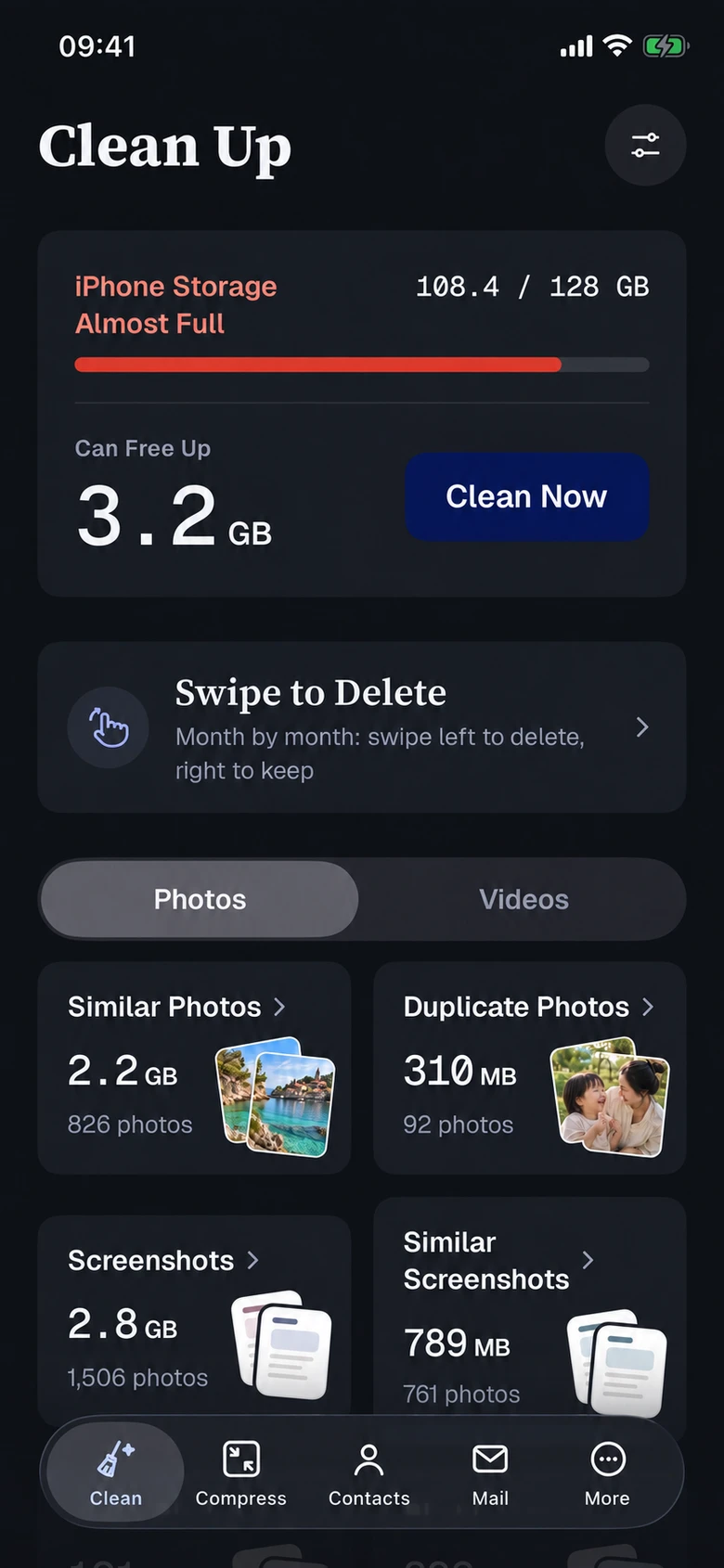
Find duplicates and similar shots. Review before you delete.
Scan your library for duplicates, similar photos, screenshots and blurry shots. Review suggested items together in One-tap Cleanup, or adjust the selection within each category before confirming deletion.
Duplicate & similar photos
Screenshots, similar screenshots & blurry shots
Chat images
Similar videos, large videos & screen recordings
02 / COMPRESS & CONVERT
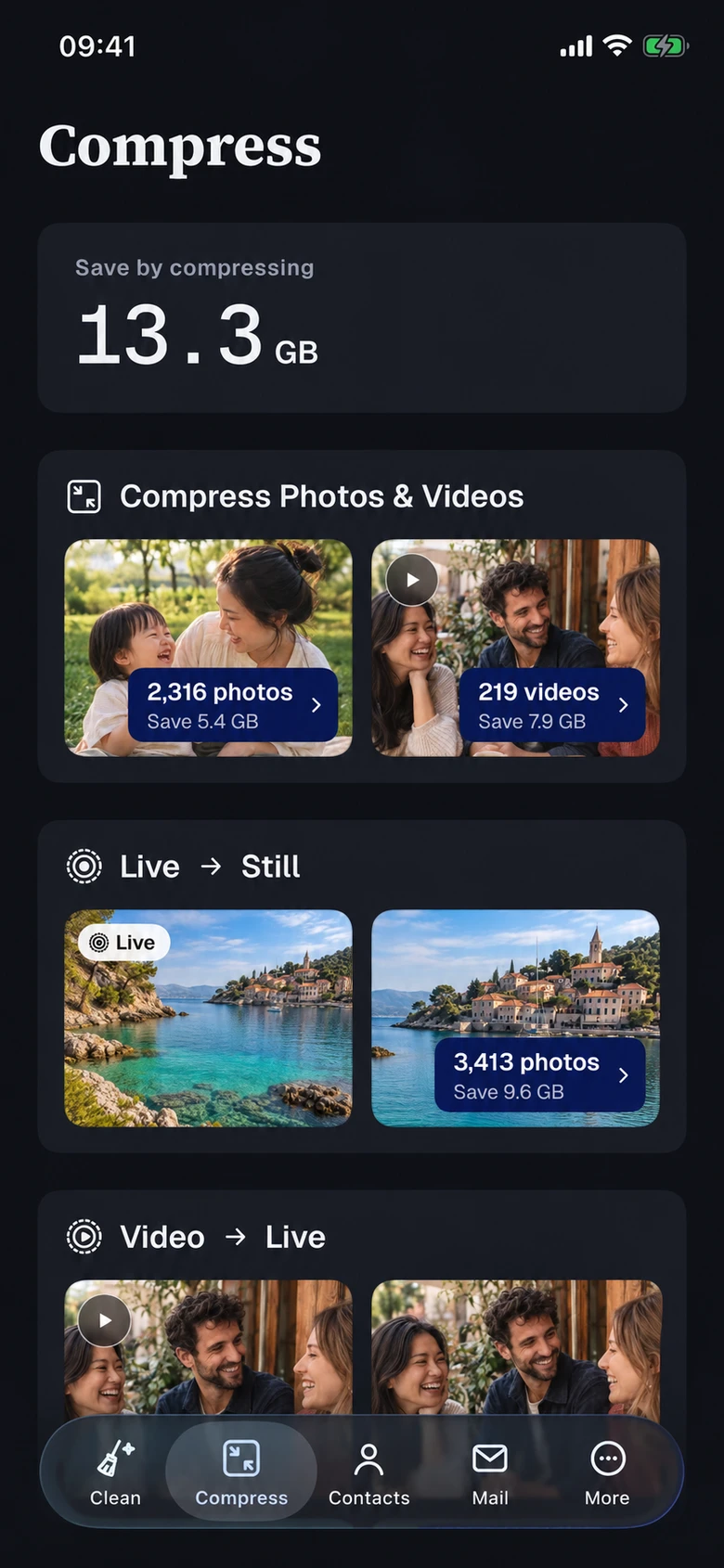
Compress photos and videos. Reduce their file size.
Choose a compression level for photos and videos, and preview before you decide. Turn a Live Photo into a still, or make a new Live Photo from a favorite video clip.
Photo & video compression
Choose the balance between quality and file size.
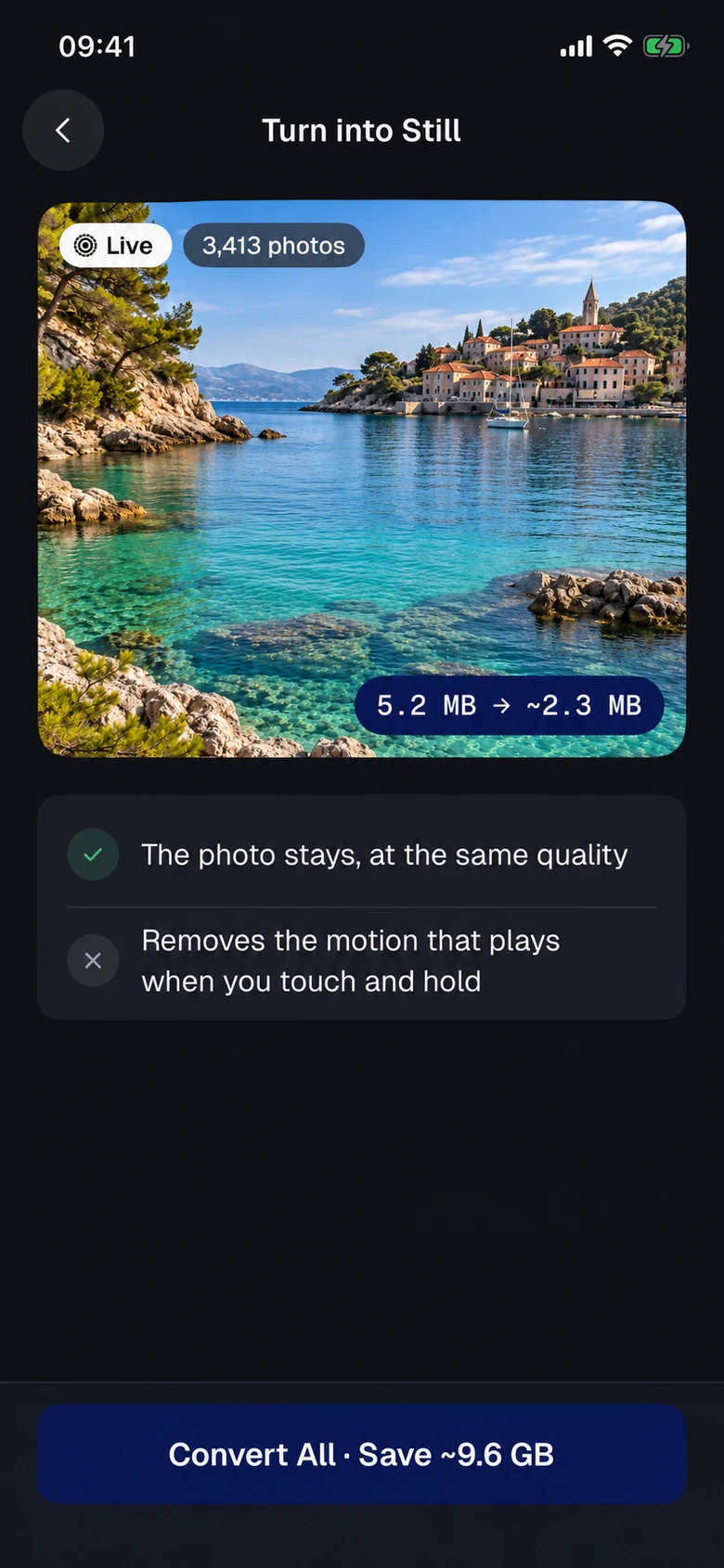
Live Photos to stills
Keep the still image, without motion or sound.
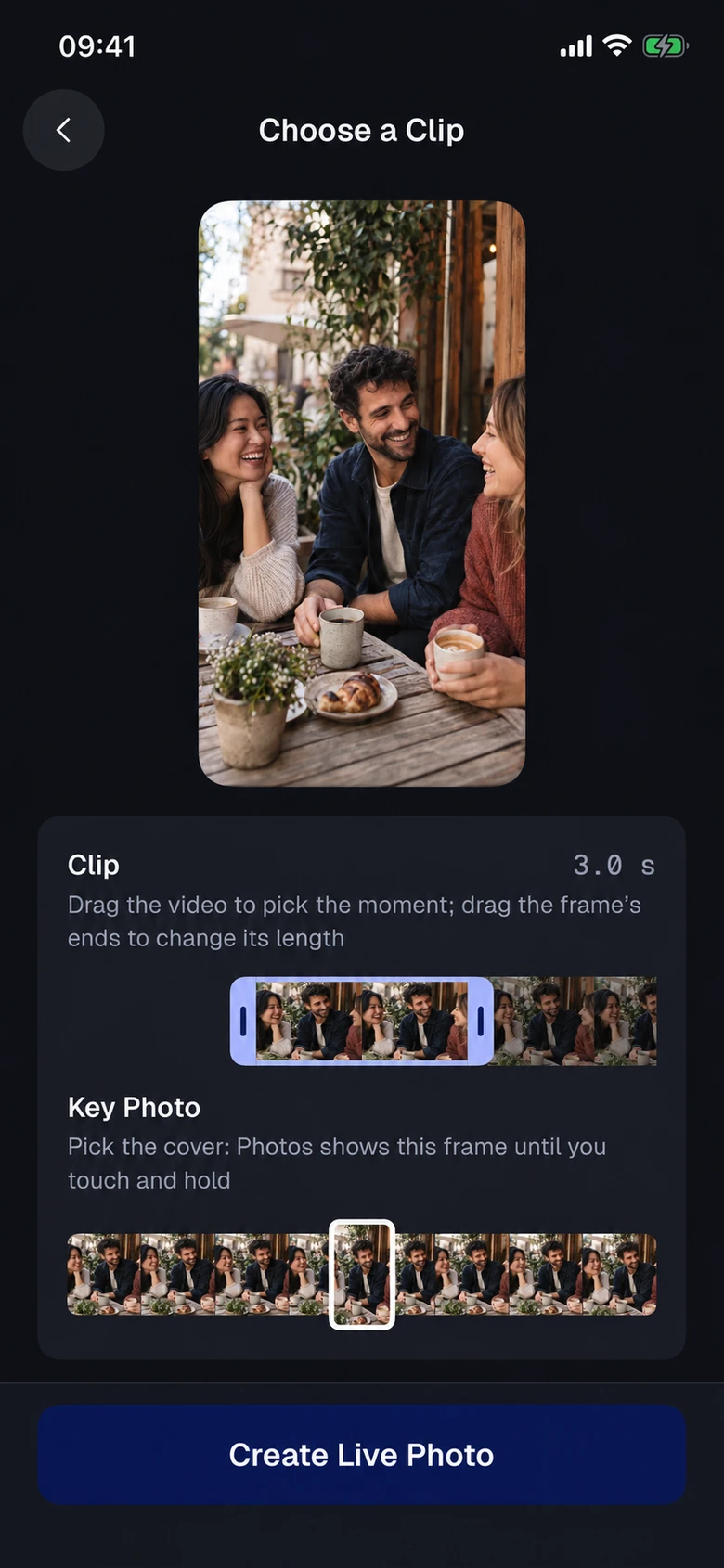
Video to Live Photo
Choose a clip and key frame, preview, then save to Photos.
Original fileCompressed copy
Original file
Compressed copy
Choose your compression level.
Size illustration. Actual savings depend on the file and selected quality.
LIVE PHOTO TOOLS
Live Photos to stills. Videos to Live Photos.
Reduce the space used by motion, or turn a video moment into a Live Photo. Choose the conversion you need.
REDUCE FILE SIZE
Live Photos to stills
Keep the still image without motion or sound. Review the available Live Photos and estimated size, then confirm the conversion.
1Review Live Photos
2Confirm conversion
3Keep the still image
The converted photo no longer includes motion or sound. Check what you want to keep first.
CREATE A LIVE PHOTO
Video to Live Photo
Pick a moment from a video, adjust the clip and key frame, then preview and save a new Live Photo.
1Select a video clip
2Choose a key frame
3Preview and save
A creation tool. After saving the new Live Photo, you can choose whether to delete the original video.
Based on current app captures · AI-generated demo photos. Sizes and counts are illustrative.
Monthly cleanup · Illustration
Review a photo. Make your selection.
Left · Set asideRight · Keep
03 / SWIPE TO SORT
Swipe left to remove. Right to keep.
Review photos month by month. Swipe left to mark for deletion or right to keep. Undo a selection when needed and check the pending list before deleting.
Swiping left only marks a photo. Review your selection and confirm before anything is deleted.
04 / GMAIL CLEANUP
Clean up Gmail. Manage unwanted subscriptions.
Review social, promotions, updates, forums and spam separately. Filter by age, read status, stars and protected keywords, then move unwanted messages to Trash.
Filter before you clear
Protect what matters and check your selection before acting.
Manage subscriptions
Review mailing-list senders and request to unsubscribe. Some senders require you to finish on their website.
Starred messages and keywords can be protected in filters
Mailbox category illustration · No real messages
Gmail only. Requires Google sign-in, mail permission and a network connection. Cleaning Gmail does not imply an equivalent saving in iPhone storage.
CONTACTS & MORE TOOLS
Clean up contacts. Manage more on your iPhone.
Merge duplicate contacts
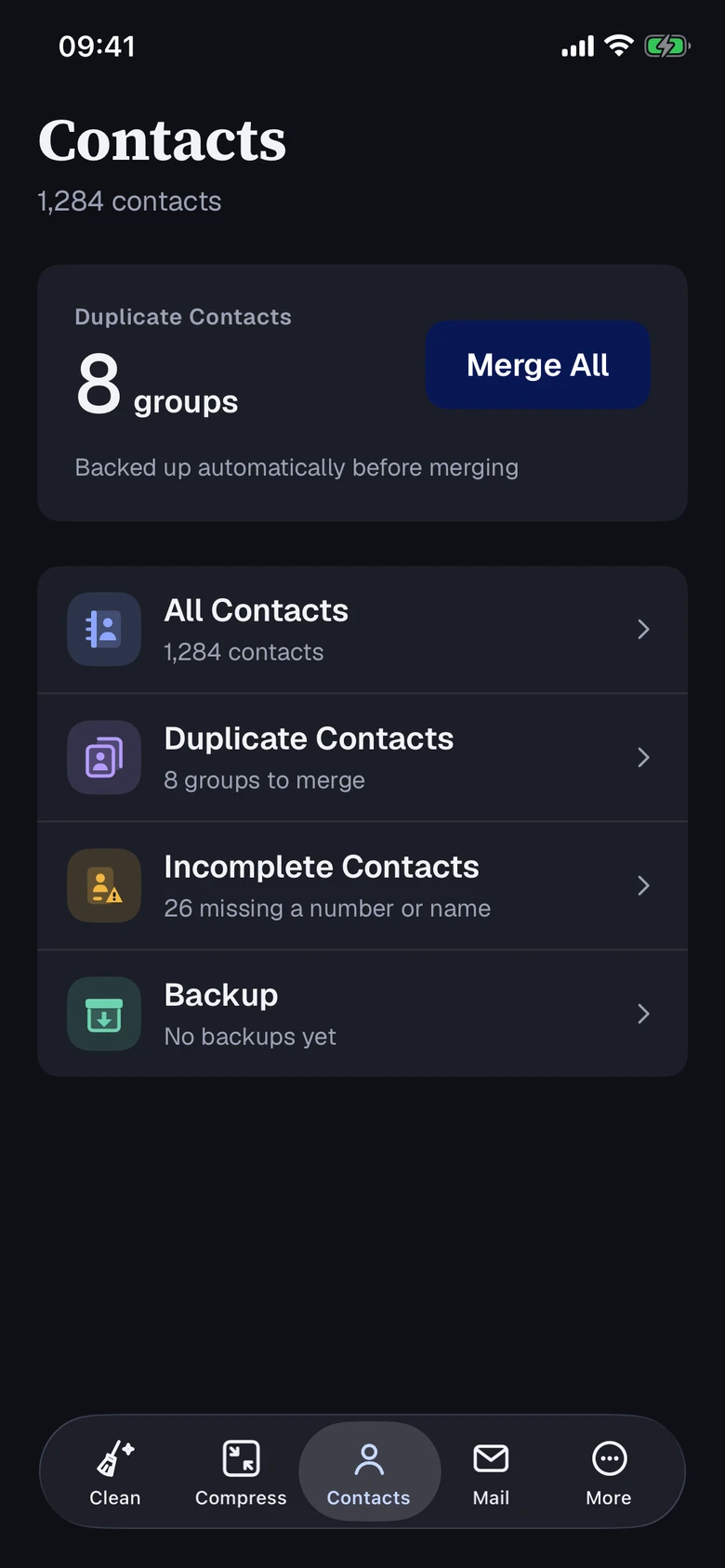
Review all, duplicate and incomplete contacts. Merge groups or all duplicates with an automatic backup first. Manual backup and restore are also available.
Duplicate entries
Merged details
Automatic backup before merging
Private Space & browser
Keep photos, videos and contacts in Private Space. Set a PIN to manage access, and browse with temporary website storage.
Content is stored on your device. Keep a backup.
Remove past calendar events
Browse past calendar events by year and choose the entries you no longer need.
INSIDE CLEAN DUO
One app for cleanup, compression and more.
Five tabs for everyday iPhone maintenance. Choose a tool below for step-by-step instructions.
Clean
Review photos and videos by category, or swipe through each month.
Compress
Compress media, turn Live Photos into stills, or videos into Live Photos.
Contacts
Review duplicates and incomplete contacts. Merge, back up and restore.
Based on current app captures in dark appearance, with photo placeholders replaced by AI-generated demo photos. Sizes, counts and contacts are illustrative. Light appearance is also supported.
Live Photo to still keeps the image without motion or sound. Video to Live Photo lets you choose a clip and key frame to create a new Live Photo. After saving, follow the app’s prompt to choose whether to delete the source video.
Why can’t I connect Gmail?
Check that your network can reach Google, then sign in again and allow Gmail access. Only Gmail is currently supported. You can disconnect and reconnect; follow any authorization prompts shown in the app.
How do I restore PRO on a new iPhone?
Use the Apple Account that made the purchase, then tap Restore Purchases in Clean Duo Settings. Check that your subscription is still active. Restoring a purchase does not charge you again.
Which permissions does Clean Duo need?
Photo access is needed to organize your library. Contacts and calendar access are requested when you use those features. You can change access in iPhone Settings. With limited photo access, only the photos you allow can be organized.
Are my photos deleted automatically?
Nothing is deleted without your confirmation. You can review the suggested selection. Swiping left only marks a photo for deletion; carrying out the deletion also requires confirmation in the system prompt.
Can I recover deleted photos?
You can usually restore them from Recently Deleted in the Photos app, within the period shown by iOS. Clean Duo cannot recover permanently deleted items. Storage may not be fully released until Recently Deleted is cleared.
Will compression affect quality?
Compression balances quality and file size. Preview and choose an appropriate level. Replacing an original creates a new copy and deletes the original. Files stored only in iCloud are not downloaded for compression. Converting Live Photos removes motion and sound.
Does mail cleanup work entirely on my device?
Photo analysis and media processing run on your device. Gmail requires Google sign-in, mail permission and a network connection. The app talks directly to Google. Unsubscribe may also contact the sender’s service; see the privacy policy for details.
Can I recover mail after cleanup?
Cleanup moves messages to Gmail Trash. Restore them in Gmail within the period it shows. Clean Duo cannot recover permanently deleted mail. Mailbox cleanup is not equivalent to freeing the same amount of iPhone storage.
What is the difference between free and PRO?
The current version gives each metered feature 12 free uses per local day. Photo deletion, compression, Live Photo-to-still conversion, calendar deletion and Private Space imports count per item. Video-to-Live-Photo creation counts each saved Live Photo. Mail counts cleanup or unsubscribe actions, not individual messages in a batch. PRO removes these allowances; follow the limits shown in the app.
CLEAN DUO · iPHONE CLEANUP & COMPRESSION
Clear the clutter. Make better use of your storage.